Lab 01
Dr. Java Introduction
Objective:
Learn how to use a basic IDE called, “Dr. Java”, and write a very simple program step-by-step.
Steps:
- Open Dr. Java.
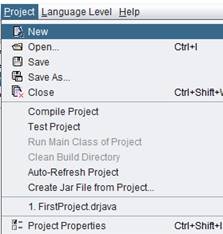
- Create a new project by going to the toolbar and clicking Project->New
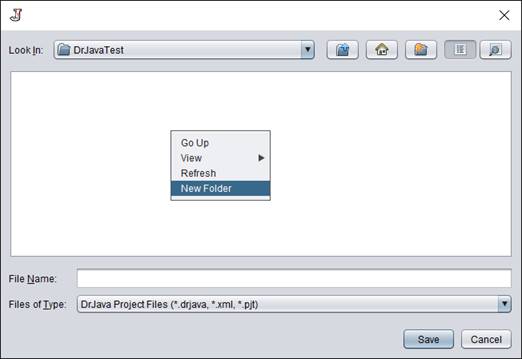
- Right click and select New Folder and name the folder FirstProject
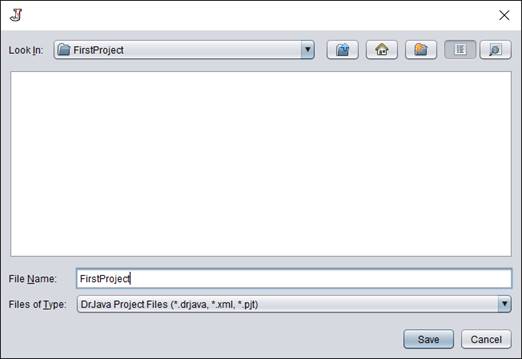
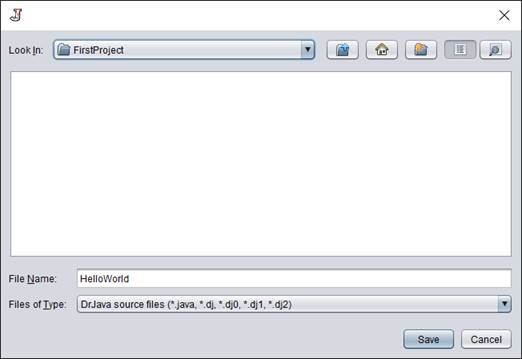
- Double click the newly created folder (FirstProject), enter the File Name FirstProject, and finally select Save
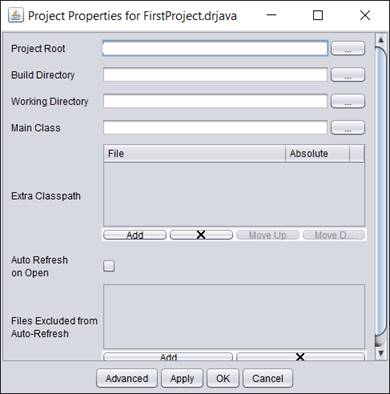
- In the following window that should pop up click Ok
- Next go to File->New Java Class
- In the next dialog enter the Class name as HelloWorld and also click the checkbox Include Main Method
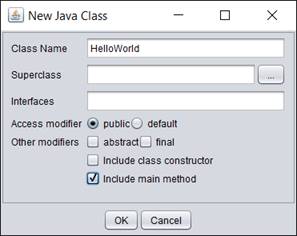
- It should now come up with some code. In the top comments (indicated by /* … */) make sure to put your and your partner’s name

- Next below the comments enter “import java.util.Scanner;”. This code will allow us to use the Scanner object later to gain user input

- Inside of the main method / entry point (public static void main(String[] args) enter “System.out.println(“Hello World”);”
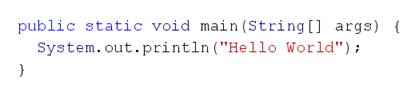
- Next save the file by File->Save and make sure the file name is HelloWorld.
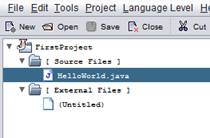
- If this is done correctly, then in your project view (left side bar) you should see this file under your [Source Files]
- Next click on Compile Project and then Run in the lower tool bar

- This should compile the code and in the console window it should say “Hello World”
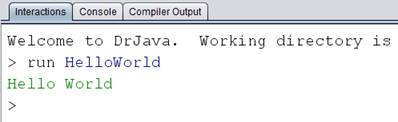
- If this is not the case then check over the code that was entered to make sure there were not any syntax errors. If there were then when you compile they should appear in the dialogs in the lower box, and will be highlighted in the source code.
- Next add the following code after “Hello World” but still inside the main method
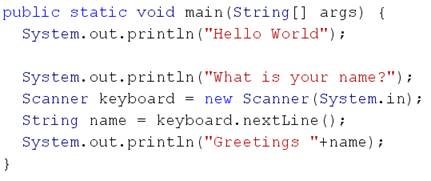
- Save it, compile it, and run it. You’ll now notice in the dialog box it waits for you to enter in some information. Enter your name and it should print out “Greetings <YOUR NAME>”.
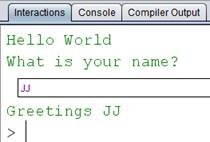
- The variable “keyboard” creates a new instance of an object Scanner. This allows us to gain input from the user via the keyboard. The statement “String name = keyboard.nextLine();” creates a variable called “name” of type String and then stores the entire line entered in by the user via the method “nextLine()”. Finally “System.out.println("Greetings "+name);” outputs the salutation plus the contents of the variable “name”.
- Scanner has many methods that can be used to get input from the user. For instance enter the following code after “System.out.println("Greetings "+name);”

- Save it, compile it, and run it. Now you enter your name and the number of cats you own. The print out should look similar to the following
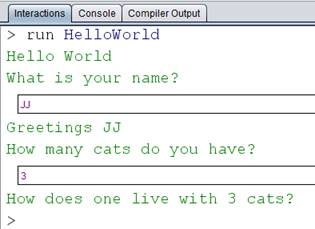
- In this example a new variable of type int (integer / whole number) is created and the scanner assigns the numeric value using the method “nextInt()”.
- The contents of “numberOfCats” is printed out along with the additional phrase.
- Show this to the TA and make sure to submit it to the dropbox under both accounts.
Lab Report Questions:
- What is the name of the program that takes high-level code and transforms it into machine level code?
- Java creates code just before it is fully compiled to machine code. What is this type of code called?
- What are some pros and cons of using Java?
Finally:
Upload the .java file to the dropbox